Showing posts with label Customization. Show all posts

Thursday, March 20, 2014

Efficiently Using Multiple Browsers (with a single key press)

Maybe I’m weird, or maybe my job has more requirements than others, but I use Google Chrome, and Microsoft Internet Explorer interchangeably.  I know web developers have this problem, perhaps they’ve already worked out a work flow, but I wasn’t able to find one.  Ultimately for things that are work related, I want to open those in Internet Explorer, and personal browsing, I want to use Google Chrome.  While we all have our reasons for using one browser over another (I have mine), if you want to use both, there was no really good way…

So I had a friend teach me how to write my own browser…

Ok, ok, I didn’t technically write my own browser, that would take a lot of work, but what I did do is build a Browser Proxy.  The Browser Proxy is the default Browser on my PC, and all it does, is validate if a key is pressed (“Left Shift” to be exact) and either launch IE or Chrome based on that key.  This means for me now, “Click” is to open in IE and “Shift+Click” is to open in Chrome!

Here’s how I did it
First, you need AutoHotKey, which I’ve written about before.  You can use it have an always-on scripting engine running to help you control Windows, or to create scripts and turn them in executable, which is what we’re going to do here.  So get that installed on your PC.
Second, Choose your actual “Default Browser” in Windows.  I made Internet Explorer default because people send me work related links in Lync, Email, and they are scattered all through documents and such, so it makes sense to make IE default for me.  This means that without the SHIFT key down, IE will be used.
Third, we need to create what I call “Browser Proxy” executable, This is going to be a bit more complicated, to get you started, My friend and I have created the browser .ahk file (AutoHotKey script) and installer .reg file (think of this as associations for your application so Windows can find it).  Download the package here, (virus scan it, because you should virus scan any weird .zip file you download from the Internet), and then unzip it.  You’ll find 3 files, one of which is a readme and you can figure that out.
Crack open the BrowserProxy.ahk in Notepad or your favorite editor, it looks like this:
GetKeyState,State,LShift
IfEqual,State,U
{
    ; Shift Key up -- launch IE
    Run,"C:\Program Files (x86)\Internet Explorer\iexplore.exe" -nohome "%1%"
}
Else
{
    ; Shift Key down -- launch Chrome
    Run,"C:\Program Files (x86)\Google\Chrome\Application\chrome.exe" "%1%"
}
Validate the paths for both Internet Explorer and Chrome. Change the paths as appropriate.  You can also chose to use a different key, like if you wanted the Left CONTROL button to be the key you use, change the “LShift” in bold above to “LControl”.  In fact you can choose whatever key you want (here is the list).
Once you’ve got the script validated, save it and then since you now have AutoHotKey installed, you right click on the script and choose Compile Script.
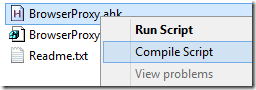
Compile Script
This produces a BrowserProxy.exe in the same directory. I copied this to "C:\Program Files (x86)\BrowserProxy\BrowserProxy.exe" (and agreed to the UAC prompt). You can put this anywhere, but more updates will be required in the .reg file which we’re going to use next.
Now we need to import the BrowserProxy.reg file into your system registry.  Please do feel free to open it in Notepad before importing it (you should always be aware of what you’re putting into your registry), but it does 3 important things
  1. Define the BrowserProxy.exe application under the SOFTWARE section of the registry
  2. Registers that application
  3. Sets up the root classes that the application can handle
If you changed the path of where you put BrowserProxy.exe, you’ll need to update that as well, and mind that you keep double \\ when you put the path in.
Now that your own “Browser” is ready, you need to make it default.  This is how I did it on Windows 8.1
  1. Open the Desktop Control panel (Win+R, type “control”, and click OK)
  2. Click on Programs
  3. select under Default Programs click on Make a file type always open a specific program.
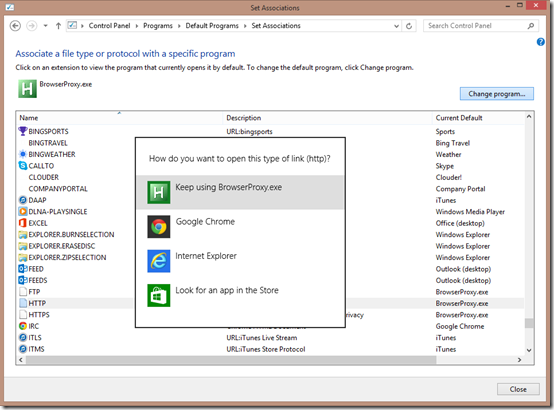
  4. In this dialog, we need to change the default to “Browser Proxy” for “.htm”, “.html”, “.shtml”, “.xht”, “.xhtml”, “FTP”, “HTTP” and “HTTPS”.  Select the item in the list and click on Change program… then select BrowserProxy.exeChange Associations
Once you have configured all 8 defaults, you should be able to immediately start using a CLICK to open in IE and SHIFT+CLICK to open in Chrome!!
Note: Some applications may cache the default browser, in which case they would need to be restarted (My offender: Outlook).  Now you can use two browsers easily without having to do the usual tricks of copying URLs between browser windows, or manually setting default browsers constantly.
Final note: If you are looking for a way to launch Firefox, try changing the launch EXE in the .ahk script to:
{
    ; Shift Key down -- launch FireFox
    Run,"C:\Program Files (x86)\Mozilla Firefox\firefox.exe" -requestPending -osint -url "%1%"
}
For Reference here is the contents of the .reg file:
Windows Registry Editor Version 5.00
[HKEY_LOCAL_MACHINE\SOFTWARE\Clients\StartMenuInternet\BrowserProxy.EXE]
@="BrowserProxy"

[HKEY_LOCAL_MACHINE\SOFTWARE\Clients\StartMenuInternet\BrowserProxy.EXE\Capabilities]
"ApplicationDescription"="Browser Proxy Application, enables you to switch between IE or Chrome simply by pressing SHIFT when you click"
"ApplicationName"="BrowserProxy"

[HKEY_LOCAL_MACHINE\SOFTWARE\Clients\StartMenuInternet\BrowserProxy.EXE\Capabilities\FileAssociations]
".htm"="BrowserProxyHTML"
".html"="BrowserProxyHTML"
".shtml"="BrowserProxyHTML"
".xht"="BrowserProxyHTML"
".xhtml"="BrowserProxyHTML"

[HKEY_LOCAL_MACHINE\SOFTWARE\Clients\StartMenuInternet\BrowserProxy.EXE\Capabilities\StartMenu]
"StartMenuInternet"="BrowserProxy.EXE"

[HKEY_LOCAL_MACHINE\SOFTWARE\Clients\StartMenuInternet\BrowserProxy.EXE\Capabilities\URLAssociations]
"ftp"="BrowserProxyHTML"
"http"="BrowserProxyHTML"
"https"="BrowserProxyHTML"

[HKEY_LOCAL_MACHINE\SOFTWARE\Clients\StartMenuInternet\BrowserProxy.EXE\DefaultIcon]
@="C:\\Program Files (x86)\\BrowserProxy\\BrowserProxy.exe,0"

[HKEY_LOCAL_MACHINE\SOFTWARE\Clients\StartMenuInternet\BrowserProxy.EXE\shell]
[HKEY_LOCAL_MACHINE\SOFTWARE\Clients\StartMenuInternet\BrowserProxy.EXE\shell\open]
[HKEY_LOCAL_MACHINE\SOFTWARE\Clients\StartMenuInternet\BrowserProxy.EXE\shell\open\command]
@="\"C:\\Program Files (x86)\\BrowserProxy\\BrowserProxy.exe\""

[HKEY_LOCAL_MACHINE\SOFTWARE\RegisteredApplications]
"BrowserProxy"="Software\\Clients\\StartMenuInternet\\BrowserProxy.EXE\\Capabilities"

[HKEY_CLASSES_ROOT\BrowserProxyHTML]
@="Browser Proxy"
"FriendlyTypeName"="Browser Proxy"

[HKEY_CLASSES_ROOT\BrowserProxyHTML\DefaultIcon]
@="\"C:\\Program Files (x86)\\BrowserProxy\\BrowserProxy.exe\",0"

[HKEY_CLASSES_ROOT\BrowserProxyHTML\shell]
[HKEY_CLASSES_ROOT\BrowserProxyHTML\shell\open]
[HKEY_CLASSES_ROOT\BrowserProxyHTML\shell\open\command]
@="\"C:\\Program Files (x86)\\BrowserProxy\\BrowserProxy.exe\" \"%1\""

Thursday, December 05, 2013

Adding Server Shares to Modern Photo App – Windows 8.1

Windows 8.1 updated the photo app to remove Facebook, and Flickr, and make it only look like you can view pictures on your local device, and on your SkyDrive.  However, this isn’t entirely true.  If you’re like me and have a NAS or in my case, a Home Server on your network, you could quite possibly have GBs of pictures stored on your server that you want to show to friends and family on your tablet.  That can be cumbersome to get to if you don’t set it up first.  And nothing makes family or friends more bored of looking at your pictures, than watching you struggle to get to them.

Here is how to add those GBs of photos to your surface “view” without actually copying them to your surface.

First you need to make sure your surface has access to the server share.  I recently wrote a post on how to do that – Using the Windows Credential Manager to Store Server Credentials in Windows 8.1.

Next follow these steps:

  1. Open up the Desktop app if you haven’t already
  2. Open up Windows Explorer and navigate to the picture folder on your remote machine
  3. Right click on the folder containing the pictures, and go to Include in library, and select Pictures to include it into the pictures library. Include in Pictures library
  4. Now you’ll see in your libraries that you have two locations for PicturesPictures library
  5. Next go back into the Photos Modern app and choose the local computer, you’ll notice all the folders inside the pictures folder you chose in step #3, if you’re on the local network Pictures Library Modern App

Now when you’re on your local network, you just look like you have a HUGE photo collection.  The downside is if you take pictures at 21megapixel like I do and use very little compression, that you’ll end up having to wait for Wireless to download each picture as you go to view it.  I find a good 2-3 second story about each picture is enough for the next picture to download in the background. Smile

Monday, June 04, 2012

How to Share Hotmail Calendars between two or more people

I’m a huge user of Hotmail. It’s where I store my personal email.  I looked at hosting it in Office 365, but to have to pay for one mailbox or a few mailboxes for personal use is kind of cumbersome.  There is no doubt that Office 365 is better for businesses, but for personal use, Hotmail is just fine for me.

However, there are some features that *just happen* with Office365, that don’t necessarily happen in Hotmail, like Calendar sharing.  I’ve started using my Hotmail calendar for anything personal that I need to track, and then create a calendar request to my work calendar if it’s during business hours (like a Dr’s appointment).  My wife actually uses her Hotmail calendar to track her work schedule.

My wife is bad at remembering to update digital calendars, so once/month, I perform secretary duties, which just makes both our lives easier.  But the key is I update her calendar, from my account.  We can also view each other’s calendar on our PCs, our iPads and our SmartPhones.  Here’s how.

  1. From each account you want to share, go to Hotmail.com, log in, and click on your Calendar.
  2. Click on the Share link above your calendar
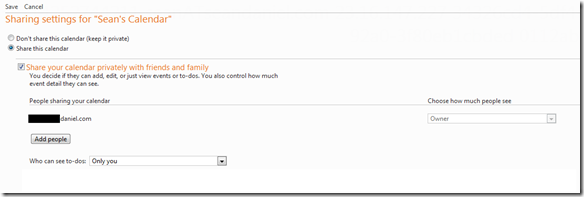
  3. Change the Don’t share this calendar (keep it private) to Share this calendar Share this Calendar
  4. When you select Add People you can select from your address book of people to share from and how much access you want that person to have.  For example, I had my wife give me co-owner access so I could update her calendar once/month with all the items she writes down in her day planner, and I gave her view details:  Calendar Access
  5. Then hit Save all the way down at the bottom of the page.image

The beauty with this is the calendar, with your access level just pops into your calendar list, you can choose to overlay it in your calendar (default), or just uncheck it.  Given that I want to know what my wife and daughter are up to, I just keep it active.  Then at a glance I’ll know if my wife is working on Friday or not and if I can go to soccer practice.

Even further into the beauty of Hotmail calendaring, is now this is accessible from all the different calendar views that you might use.  For example, if you use an iPhone or an iPad as we do in this house, you get your Hotmail calendar’s right there on your phone.

iOS Calendar

Additionally, if you use the Outlook Hotmail Connector (the primary reason I use this is for the calendar), then you can see all of your chosen calendar’s in the single Outlook view.  Which makes it for even easier update, select the calendar you want to update, and then just type into the calendar like you would with any Outlook calendar.

image

And yes, I am anal about my calendar’s, so I even make them all the same colour on all the views/devices.  My work calendar is always blue, my home calendar is always brown, Kendra’s calendar always yellow (except yellow doesn’t look good in the Outlook view).

I highly recommend sharing calendars for people you are with a lot, especially a spouse, it just makes life easier for us to stay in touch and know what’s going on.

As a final note.  If you wanted just do a 1-time send of your free/busy information to someone, Hotmail has you covered there.  I have yet to use this feature, because my personal calendar just isn’t that packed, and not everyone is as religious about their calendars as I am.  But on that same Share tab, Hotmail serves up all the personalized links and you can choose which one to send

Links Only

Tuesday, November 01, 2011

Using your Home Server for more than Storage, Backup and Remote Access

Back in 2006, I was without power for 4 days in November.  It was cold, but I had friends, and an offline Small Business Server 2003 R2.  Of course I ran everything out of my house, why wouldn’t I?  Being offline my server started sending NDRs and I didn’t have access to anything, as it was all offline.  While I had been toying with adopting the cloud for the amount of spam I was getting, this pushed me over the edge.  It was at that time I decided to adopt the cloud.  My email and most things that I own are all hosted in various cloud services so if the power goes out at my house, my stuff keeps running. 

Trust me, I did a cost benefit analysis and in order to keep things running for me at home, I’d have to pay for hosting services anyways, and given I was running a “business class” server, I was forced into “business class” prices.  I am not a business, I am a consumer.

However, there are certain things that I don’t trust the cloud for, and hence I want my own cloud storage that I run and have total control over.  Enter Windows Home Server stage left. Home Server has been my personal cloud storage location since 2007, I now run WHS 2011.

Enter Cloud computing.

My Windows Home Server is perfect device to do computing for me, and it can just chug away on it all the time.  The one draw back is that there is only one account “Administrator” that has total access to the server.  this obviously isn’t good computing practice, so let me show you how to create a working account that you can have do things for you.

First step, let’s create a new user account on the server.  We’ll do this using the normal Add User Wizard in the dashboard.  I’ll call the user Working User.  I gave the user access to the shared folders it needed access to (where I can interact with Working User’s storage), and nothing more.  I didn’t even give this user remote access.

Now, by default all users created don’t have access to log into the server, we need to grant this permission.  This will make the user a standard user on the server, so it will have access to do things the same as a standard user would have access on a client PC (running applications, a /user folder with full control, and access to those folders you gave it.  it won’t be able to mess with the OS or install things.  PERFECT!

  1. On the server console, click Start, then Run, and type in gpedit.msc to edit the local policy on the server
  2. Expand down Local Computer Policy, Computer Configuration, Windows Settings, Local Policies, and click on User Rights Assignment
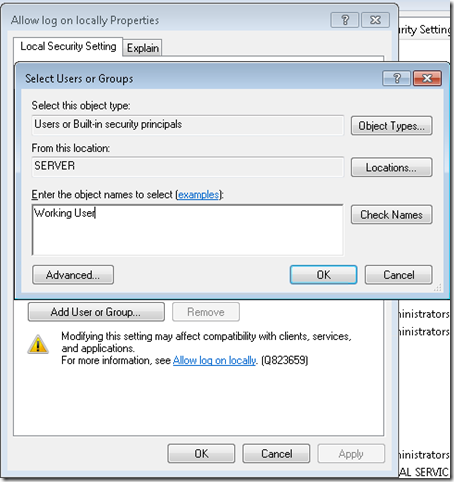
  3. Scroll down the list on the right until you find Allow log on locally and double click to open the property page
  4. Click the Add User or Group… button and type in the username that you created in the first step inside the Add User Wizard. Allow Log on Locally Properties Page
  5. Click OK and then OK again and close the local group policy editor.

Now this Working user has access to log in to the server locally.  Of course it can’t do any administration of the server as it’s not a member of the administrators group.

Next I want to use something as this user, say the command prompt.  I simply use a command line like the following: C:\Windows\System32\runas.exe /USER:SERVER\Working /savecred "C:\Windows\System32\cmd.exe"

The /savecred will save the credentials you typed in as Working User (alias “working” in the above) and will remember it for future runs.  I actually just created a shortcut with this command in.  Now that you have a command prompt open, anything you run from this command prompt will run as the Working User.  So you can load up any application and have it work in the context of this non-administrative user.  So if you do hit something that wants to modify your system, you’ll get a UAC pop-up or an access denied (I haven’t hit anything like that yet in my set up).

Just be careful what you do, because there is no free Anti-virus for your server, and I highly recommend getting an anti-virus for your server if you plan on connecting this user up to the Internet to do anything directly on the server.  I have Antivirus on my system.

Thursday, February 10, 2011

How to Enable TimeMachine Backup for your MAC to your Windows Small Business Server 2011 Essentials or Windows Home Server 2011

Well, I don’t often dabble around with a MAC, I just can’t get used to the single mouse button and pressing a key on the keyboard for a simple context menu.  I’ve quite possibly been assimilated to Windows.  However,  protecting your data is important, even if you are on a right-click less product.

As you probably know by now, the Release Candidate of both Windows Small Business Server 2011 Essentials, and Windows Home Server 2011 is now live. Which means you can download and install them!!  You should take a moment and do that now.  I’ll wait.

Once you have these installed, you can easily add your Windows based PC to the server and to the PC backup by simply going to http://server/connect on your client PC.  Click the install for Windows PC button and follow the instructions.  Windows PC’s are automatically added to the backup which takes place in a round robin style nightly.  When you’re on a Mac, it’s the same thing, but you click “Install for Mac”, you end up with a launch pad and access to the server, but no default backup.

It has to be possible right? I mean everyone knows that a MAC is really a *nix box with a really fancy UI (and no right-click).

Poking around on the Internet, you can find some steps, like how to get unsupported volumes to appear to the TimeMachine engine, with the help of a friend (thanks Fabian & Craig) we’ve managed to put together these steps, which work for both Home Server 2011, and SBS 2011 Essentials:

  1. First, create an SMB share on your server using the share permissions wizard, let’s call it Mac Backups.  Make sure the users who are on a Mac have Read/Write access.
  2. Change the Mac TimeMachine to show unsupported Network Volumes by going to Finder, then Applications, Utilities, Terminal.
  3. Inside the Terminal, type this command defaults write com.apple.systempreferences TMShowUnsupportedNetworkVolumes 1.  This sets the showing of unsupported network volumes to TRUE.

 Showing Unsupported Network Volumes

  1. Obtain the MAC’s MAC Address. A MAC Address is the hardware address of the local network card.  It’s important to choose the MAC address of the built in wired connection.  To obtain this, you can run the command from the terminal: ifconfig | grep en0.

 Finding the MAC Address

  1. Next (and this is the confusing part, so bare with me) we need to create a sparse file on the MAC and copy the server share.  A sparse file is a file that you define a CAP size, but it will probably take up much less (we’ll define it as 200GB in this example).  This file creation process is a little tricky.  To do this, type in to the same terminal above: command ‘hdiutil create –size 200g –fs HFS+J –volname “<CLIENT_NAME> Backup” <CLIENT_NAME>_<MAC_ADDRESS>.sparsebundle’ Where the MAC client is called <CLIENT_NAME> and the MAC Address on the primary wired connection to the MAC is <MAC_ADDRESS>.  This means if you’re client name was OSX, and your MAC address is 00:00:1F:12:82:92, then your command would be: command ‘hdiutil create –size 200g –fs HFS+J –volname “OSX Backup”  OSD_00001F128292.sparsebundle’  .  Here is what it looks like this client is called “macmini2” and has a MAC address of 34:15:9E:09:00:94


Sparse File Created

  1. Copy this file to “\\SERVER\Mac Backups\” that you created earlier on the server. As you probably know if you are a MAC user, you have to mount the volume:

 Mount the Server Share on the MAC

  1. Load up the Time Machine settings from within System Preferences, and the sparse file you created above should be in the list.  Select this as the target for your backups.  This will have every TimeMachine backup backup directly to a share on the server:

 Configuring TimeMachine to use the sparse file

  1. Repeat for all your Mac computers on your network.

Once you have completed these steps, your MAC will start using the Windows Home Server 2011 or Windows Small Business Server 2011 Essentials as the backup TARGET.  This means it will back up over the network using the built in timeline functionality, on the schedule you define inside timeline.

What is also cool, is while the MAC won’t show a percentage complete like the PC does when performing the client backup, it will tell you the status right in the console, which of course falls through to the alerts.

Mac Backup Successful:

Mac Backup Successful

Mac Backup Unsuccessful:

Mac Backup Unsuccessful

So there you have it, How to backup a MAC to a Windows Home Server 2011 (aka Vail) or Windows Small Business Server 2011 Essentials (aka Aurora) Server.

For reference, here is the team reference for WHS v1

Tuesday, February 01, 2011

How to set the Default Printer for All Users in your Small Business Server 2011 Standard or Essentials Network

One of the biggest pains in a small business is setting up the default printer that everyone needs to use.  With these high powered printers that can handle pages per second and are often shared between a very high number of small business employees, if not all, setting the default printer can be a tedious task.

Before you can start, you need to make sure that the clients understand the new policy.  Windows 7 and higher have the GPO extensions needed to understand this policy, but they will need to be installed on Windows XP or Windows Vista clients.  If you are running SBS 2011 Standard, you can create a "Feature Pack” inside WSUS server and deploy it to all your clients without visiting them.  If you’re running SBS 2011 Essentials, you’ll have to manually install it on each client computer.

Next, we should get the Group Policy in place.  The Group Policy will apply to all users as they log in to change the default printer, should we set it up correctly.  To do this we’ll first create a Group Policy Object to work with.  It’s always good practice to create a new Policy that you can enable/disable per item you wish (although keep in mind that the more policies you add, the slower it takes clients to apply them all).  Here is how to create the default policy:

  1. Click Start, Administrative Tools, and then Group Policy Management.
  2. Expand Forest: <domain.local>, then Domains, and then <domain>.local
  3. Right-click on domain.local and click Create a GPO in this domain and Link it here
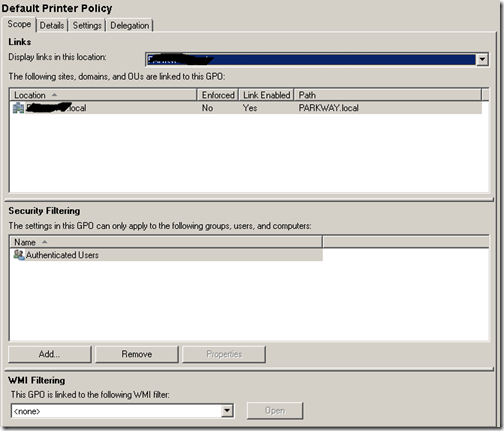
  4. Give it a friendly name, I called mine Default Printer Policy, leave the starter GPO to (None)

Now we have a policy to work with.  Next up we have to make this policy do something.  Right now it doesn’t.  As a test, I like to make sure it works for one user first, so let’s find a guinea pig and go from there:

  1. With the new Default Printer Policy selected, remove Authenticated Users from the Security filtering and place in the guinea pig user. Select Authenticated Users, and click Remove.
  2. Click the Add… button, type in the user’s alias and click OK.

Default Printer Policy

This ensures that the policy only applies to the one user.  Now let’s set up that default printer within the GPO:

  1. Right-click on the Default Printer Policy GPO and chose Edit…
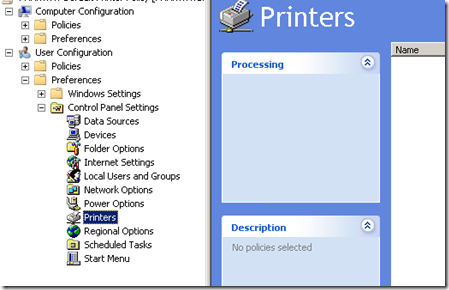
  2. The GP Management editor opens, expand User Configuration, Preferences, Control Panel Settings, and select Printers:Printer Policy
  3. Right click on Printers, and choose New… and then Shared Printer. New Shared Printer Properties
  4. Under the Action drop down, make sure it says Create
  5. Under the Share Path: put the path to the shared network printer
  6. If you want it to be the default printer, tick the Set this printer as the default printer.  In some cases, few people in the business have private/personal printers, you can exclude these if there is a local printer attached by checking the next box

This of course implies that the printer is installed on each client computer you want to use it on.  What I did was install the printer and share it off the server.  This had the x64 drivers on the server for handing out to the clients on the network.  So the MultiPoint 2011 server on my network automatically installed and configured the printer as the default one.  However, the 32 bit Windows 7 clients did not.  In order to do this, I had to add the x86 drivers to the printer.  Do do this:

  1. Right-Click on the printer that’s installed on the server and choose Printer PropertiesPrinter Properties
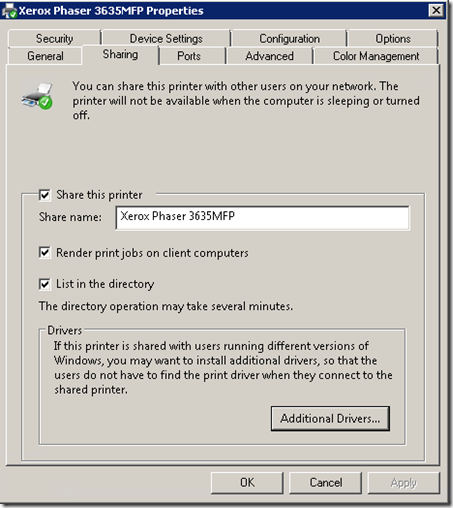
  2. On the Sharing tab, choose Change Sharing Options and then click Additional Drivers Sharing Properties
  3. Select the x86 check box and click OK..  To install these you’ll need both the 32-bit drivers for your printer (usually downloaded or on a DVD), and a 32-bit disk of the operating system.  (If you have any Itanium hardware, you’ll have to repeat for this as well)

Once this is finished, the clients both x64 and x86 will install the drivers straight from the server instead of Windows Update.  Which is much faster! 

There are additional steps you can take to make parts of your network choose different printers as their defaults etc.  For those I’m going to send you directly to my two sources of information

The Windows Server Administration blog provided most of the information, with their blog post available here.

The Group Policy Center blog provided some reference info, with their blog here.

Thursday, October 07, 2010

Customizing what is an e-mail alert on Aurora and Vail

[This post comes courtesy of Adrian Maziak, our System Health PM]

Windows Server “Aurora” is currently in Beta (You can download it from Connect, or read about the beta announcement). You’ve had it for a few months, and have probably run out of things to try on this beta. Well, I wanted to get you back involved with some customization goodies for the health and monitoring alerts that are built both into the Aurora and the Vail products that will carry into the final release.

In previous versions of Home Server, Monitoring could only be done without an add-in in the local console, or from the system tray icon on a local client. You needed something like @WHSTweet to get the alerts off the box (which by the way was a wicked application, I use it for my V1), or perhaps another add-in that I’m not aware of. Also, in previous versions of Small Business Server, there was an Exchange mail server locally to send the alert. But in Aurora there is no exchange server, that’s saved for SBS7.

With Aurora or Vail we provide the ability to insert a “SmartHost” email server that you can send mail through. This can be an email server that lives out on the Internet that you have access to, or the one at your ISP that you simply have access to simply by being part of their network.

Set up email notification for alerts

However, not all alerts will generate e-mail. The health team took a hard look at all the alerts and have made a call on which ones might be critical for the admin to know immediately, and which ones that can wait until the admin is on the network. But while we optimize this for certain scenarios, we may have missed yours. This is where customization comes in.

Each health alert is defined in a health definition file. These definition files are stored in C:\Program Files\Windows Server\Bin\FeatureDefinitions\Microsoft Base\definition.xml.config.

For example, if you were to scroll down in this file to the “AutoStartServicesVistaWin7Client” for the alert about auto started services on clients that aren’t running. This doesn’t alert by default via email, but if you wanted it to, you can add a line to the XML file <Escalate>true</Escalate>.

<HealthDefinitionConfiguration Name="AutoStartServicesVistaWin7Client">
<Configurations>
<Enable>true</Enable>
<Escalate>true</Escalate>
</Configurations>
<Arguments>
<Argument Name="Description">don’t touch this stuff</Argument>
</Arguments>
</HealthDefinitionConfiguration>

Likewise, if you are getting an alert via email that you really don’t care about, then simply open up the definition xml file and remove the <Escalate> line.

Important Tip: Make sure you back-up the definition.xml.config file before you change it. You never know when you’re going to need to revert back to the default version!

Some Known SmartHosts

SMTP Server SSL? Auth? Port Logon Information
smtp.live.com Yes Yes 587 Full LiveID username & Password
smtp.comcast.net Yes No 587 Must be in Comcast’s Network
smtp.gmail.com Yes Yes 587 Full GMail username & password
smtp.mail.yahoo.com No Yes 25 Email Name and password

*Subject to change without notice

SMTP Settings

Example using the Live Smart Host

Friday, July 09, 2010

Windows Home Server “Vail” Remote Web Access Extensibility

The 3rd in a series of blog posts on Vail extensibility went live today, teaching the developer in you how to extend the Remote Web Access website.  The full article can be found on the Windows Home Server blog - “Vail” Remote Web Access and Its Extensibility

What is new in Remote Web Access site of Vail?

Let’s check out the latest look & feel of Remote Web Access site first (RWA site for short). Pretty, hah? Do you like it? :-)

clip_image004

When we designed this new RWA site, we had two visions to guide our engineering team. First, we want to provide an easy, reliable way for users to access their data and computers from anywhere, anytime, on any device. Second, we want to provide an extensible platform for OEM and ISV partners/developers to add tightly integrated remote web access value. The second vision maps exactly to the extensibility framework of RWA site.

Basically, every built-in feature you are looking at (i.e. Computers, Shared Folders, Media Library, etc) is built on top of the extensibility framework. All the APIs we used are public to you (our favorite developers) as well. We can build it, you can build it.

Besides the look & feel and extra functionalities, the extensibility framework is the key difference comparing the new and old Remote Web Access sites.


For reference, here are the previous posts:

Happy Development!

Monday, May 31, 2010

How Developers “Extended” the Vail Launchpad

Vail LaunchpadIf you’re a developer and you’re interested in writing something for Windows sHome Server, our Lead Developer Dileep has another tip for you on how to extend the Vail launch pad.  Dileep has had a previous post on the location of the SDK for Vail and how you can get involved.

Most recently, Dileep appeared back on the Home Server blog with how to extend the launchpad, and when you should extend the Launchpad.  You can read that blog post here.

If you haven’t been on the forums already, I did a forum post on why we created the Launchpad, with feedback from you, the customer.  Dileep extended on this, copied here for your reading convenience.

What is Launchpad?

Launchpad is a light weight and extensible client-based user interface that we built for Vail. It was born out of a couple of pain points that our customers experienced from Home Server v1. While Home Server v1 provided the ability for developers to add what we call ‘administrative’ or ‘server management’ tasks to the Admin console, it did not provide any means by which a day-to-day or non-administrative task could be presented to users in a coherent manner that resonates its association with Home Server. As a result we started seeing add-ins for day-to-day consumption of home server capabilities that were deployed to Admin Console, but did not belong there since they were not administrative tasks. We realized that there is a need for providing a coherent and consistent grouping as well as entry point for home server related tasks that everyone in the household can perform from their client PCs. This was the first pain point.

The second one, and perhaps the more significant one of the two, was the limitation around having matching usernames and passwords on the server and the PCs. If you recall, in Home Server v1 we require users to create user accounts on the server that had the same username and password as that of the client PCs so that they can seamlessly access the shared folders on the server as soon as they login to their PCs. This generated lot of confusion with consumers, as was evident from the feedback that we got. With Vail, Launchpad acts as the login UI for signing the user onto the server, thereby granting them access to the Server shares and other platform services exposed via the SDK. We no longer have the requirement to have the user accounts matching on server and client, instead users can use Launchpad to ‘sign-in’ to the server with any user account and password combination that was set up in Dashboard!

In short, Launchpad serves the following purposes:

  1. It is the entry point for the day-to-day tasks related to Windows Home Server from the client PCs.

  2. It eliminates the need for matching usernames and passwords setup between server and client, and eliminates the password sync dialogs.

  3. It Provides a logical and centralized location where all home server related tasks are exposed, resulting in much better awareness of home server and its capabilities.

  4. It allows everyone in the household to have visibility to developers' add-ins, than just home server administrators.

So, if you’re a developer, head on over to Dileep’s full post, and start coding up some cool apps that will make users love your add-in, and increase the value of Vail.  I know I’ll appreciate it when we ship!

Friday, May 07, 2010

Calling All Developers–Windows Home Server “Vail” needs you!

Do moreA few weeks ago, we released the Home Server codename “Vail” public preview.  Along with that came a software development kit.  Like Windows Home Server version 1, the product is extensible, and we need add-in developers!!  We’ve put a great deal of effort into the improvement of the extensibility of the product. 

Over on the Home Server blog, Dileep, our Development Lead talks about how to jump in and get engaged.  Keep your eye on the official blog for updates as it is a planned series to help you get involved.  If you want to jump straight to the SDK, you can download the complete set of information here (You will have to sign in to Microsoft Connect site).  Any questions can be posted in the developer forum.

UPDATE: See what others are saying about the SDK.

Friday, April 09, 2010

Best of Bing – Windows 7 Themes

Are you on Windows 7 and like the Bing homepage images? You can have the best of them as wallpapers for your desktop! The first Bing’s Best theme pack was so popular, the team decided to release a second Bing theme pack: Bing’s Best 2.

In case you missed out on number one, I’ve listed them both below:

image BingBest2

You can also download both of them from here. Enjoy!

Post courtesy of Liveside.net

Thursday, January 07, 2010

How to Lock Down a Windows 7 Kiosk or shared PC

Browsing my one of my favorite RSS feeds: LifeHacker. I came across something that might be useful to a bunch of Small Business Server VAPs configuring your network.  In many cases, some companies like to provide a courtesy kiosk for visiting folks or perhaps they have a single computer for the break room. 

Over at How-To Geek is where they outline the steps.  Basically it leverages local Group Policy (although there is no reason you can’t do this in global group policy on your Windows Small Business Server 2008 machine) to allow users to only run certain applications.  Thus preventing users from getting into trouble and lowering your total cost of ownership on that client PC (or your whole network).

I’m copying the steps here for convenience.  Thanks How-To Geek!


If you have a shared or public computer you might want to allow users to use only specified programs. Today we take a look at a setting in Local Group Policy that allows you to set only specified programs to run.

Note: This process uses Local Group Policy Editor which is not available in Home versions of Windows 7.

First click on Start and enter gpedit.msc into the search box and hit Enter.

Navigate to User Configuration \ Administrative Templates \ System. Then under Setting scroll down and double click on Run only specified Windows applications.

GPedit.msc

Set it to Enabled, then under the Options section click on the Show button next to List of allowed applications.

4spec

A Show Contents dialog comes up where you can type in the apps you want to allow users to run. When finished with the list, click OK then close out of Local Group Policy Editor.

5spc

If a user tries to access an application that is not on the specified list they will receive the following error message.

6spec

This is a nice feature for limiting what programs users can or cannot access on the computer.

Tuesday, January 05, 2010

How to enable “GodMode” in Windows 7

Ever wish you could just get to all the configuration changes in Windows with one folder, instead of going back and forth in the Control Panel? Well, now you can.  Elegant Code has a blog post on how to do this.  Here’s how:

  1. Create a new folder on your desktop
  2. Name the new folder:
    GodMode.{ED7BA470-8E54-465E-825C-99712043E01C}

This gives you a new folder with a nice icon:

GodMode

Opening this folder gives you the giant list of configuration items that span across all of the control panel and such.  Giving you ultimate access to configuration aspects.  I only have tried this running as an Administrator on the system. 

And just as a reminder, “God” is not considered a strong password to protect your system, so don’t let this go to your head.  ;o)

UPDATE: Looks like ZDNet gets to the bottom of all the GUID mode shortcuts.  Their post is here, including:

Thursday, July 02, 2009

Add the Recycle Bin to My Computer

Windows 7

image

My favorite blog LifeHacker has alerted me on how to add more items to My Computer.  Specifically you can go to Tweaking with Vishal for all the details.

Essentially, you can add more items to the My Computer view, including the Recycle Bin!  All you do is add a specific GUID into a specific place in the registry. 

Remember! That editing the Registry could cause problems or unsuspecting things, so be careful!

To make the tweak, simply:

  1. Click Start, then Run and type in Regedit.
  2. Navigate to the HKLM\Software\Microsoft\Windows\CurrentVersion\Explorer\MyComputer\NameSpace key
  3. Then with NameSpace selected, on the whitespace right-click, point at New and select Key.  Add the GUID of your choice below:
    1. Recycle Bin - {645FF040-5081-101B-9F08-00AA002F954E}
    2. Control Panel - {21EC2020-3AEA-1069-A2DD-08002B30309D}
    3. Run - {2559A1F3-21D7-11D4-BDAF-00C04F60B9F0}
    4. Search - {2559A1F0-21D7-11D4-BDAF-00C04F60B9F0}
    5. Flip 3D - {3080F90E-D7AD-11D9-BD98-0000947B0257}
    6. Internet Explorer - {871C5380-42A0-1069-A2EA-08002B30309D}
    7. Administrative Tools - {D20EA4E1-3957-11D2-A40B-0C5020524153}
    8. Network Connections - {7007ACC7-3202-11D1-AAD2-00805FC1270E}
    9. Printers - {2227A280-3AEA-1069-A2DE-08002B30309D}
  4. Then simply open My Computer, or if it’s open, press F5 to refresh

If it didn’t work, make sure you don’t have any spaces on either side of the GUID and that you include the {} brackets.

Nice speed saving tip for you!

Wednesday, May 20, 2009

Windows 7 has “Network Aware” Default Printers

Windows 7

Being a 75% mobile worker, I’m constantly on the move.  This means that I live and breath on my laptop.  Windows 7 has helped me be more productive and efficient. With faster boot times, more reliable sleep/hibernation modes, and improved security and access (such as Direct Access).  My mobile computing has never been easier. 

To make it one step easier, I discovered a particularly nifty feature that I found over at Life Hacker. Windows 7 has a new printer manager feature that allows you to set your default printer dependant on which network you are connected to, perfect for a mobile worker such as myself.

Before we get into details on how to configure this, we should all working hard to reduce our carbon foot print and work on going green in the office.  With new technologies and plenty of access, printing should be one of those last resort things.

Having said that, Windows 7 can switch your default printer depending on which network you’re connected to.  For example, at my home I want the default to be my HP Laser Jet 2506dn printer.  At work I want it to be the crazy Xerox copy center behind the kitchen.

To set this up simply do the following:

  1. Launch into the Control Panel/Devices and Printers dialog
  2. Select one of your printers
  3. Select Manage default printers from the blue-bar under the address window Manage default printers
  4. Now simply choose your network, and the installed printer of preference for that network, and click Update. Manage Default Printers

From this point forward, when you are connected to that network, you’re default printer will always be what you expect.  If you do a lot of printing, might save you some time.  Or if you have users that take laptop to and from work, might save you some support time in the evenings as they go home and try to print from there.

If you’re interested in the Life Hacker post, you can read it here.  Thanks Life Hacker!

Tuesday, May 12, 2009

Adding Items to the “Send To” Menu

 image[3][1]

One of the lesser used features of Windows is the “Send To” menu.  This menu enables you to copy any file to any other location within the “Send To” menu. 

I’m often on out on corporate shares and such and I want to copy files and folders down to my local PC for faster access, or I might just want to move things around my hard drive to get things organized.  Instead of opening up two Windows Explorer Windows, you can use the one, right-click the file you want and go to the “Send To” menu, and then choose to copy it to any location you choose.  But how do you update the “Send To” menu?

image

WinHelpOnline.com has a simple solution:

  1. Click Start and then Run
  2. In the window that opens type shell:sendto, and Windows Explorer will open directly to the “Send To” menu location.
  3. Simply create a short cut to the location you want to add to your menu, and close explorer

Now when you right-click and choose that “Send To” menu, you get the additional locations you need to make your life more efficient!

(More Details at WinHelpOnline.com, this also applies to Vista)

Tuesday, May 05, 2009

How to get Live Messenger back in the System Tray on Windows 7

Ok, so Windows 7 has a fancy new task bar, and Windows Live Messenger shows up on the task bar even when it’s closed.  It definitely looks fancy, and it will help folks like my parents and grandparents find messenger on their computer.  I love that I don’t have to explain “that tiny little chess piece in the right hand corner of the screen, no further down, no all the way down, near the clock, no to the left of the clock”.  Yes, I do this often.

However, for me, and probably a lot of power users that take advantage of the fact that Windows can task-switch and have plenty of windows open, you really don’t want Live Messenger to take up a section of that, when you’re used to it sitting right in the corner out of the way.  You can get that back to the way it was in Vista/XP simply by running it in compatibility mode. 

If you want to get Live Messenger back into the System Tray, you can customize that by following these steps:

  1. Simply close Live Messenger by clicking on it and closing it.  Make sure it’s not minimized, but actually closed, so it doesn’t even appear in your Task Manager as a running program
  2. Then browse to c:\Program Files (x86)\Windows Live\Messenger (this could be c:\program files, without the (x86) if you’re running a 32-bit operating system)
  3. Right-click on msnmsgr.exe and choose properties.
  4. Under the Compatibility tab, choose to run this under Windows Vista (SP2) compatibility mode: image
  5. Click OK, and then run messenger again

Now Live Messenger is sitting back in the system tray.  Don’t forget to customize the hiding feature, so it doesn’t hide on you for not using it!!

image

So, it’s easy to get Live Messenger back in the system tray.

Friday, April 24, 2009

Customize the Win7 Logon Page

Windows 7 Beta is out, and the Windows 7 Release Candidate is just around the corner.  I’ve been running Windows 7 for quite a while now, in production on all of my computers.  It’s been pretty rock solid, with no blue-screens, and all of my devices found save for a few, until recently it’s all of them! 

As I move from build to build, things just keep getting better, and I’m once again inspired to start customizing Windows like I used to have time for in College with Windows 98!  One of the new features of Windows 7 for OEM (Original Equipment Manufacturers) is to change the backdrop on the logon page.  That means, unlike with Vista, you’re not stuck with the same graphic, because it’s easy to change!  LifeHacker.com has the original steps I copied mine from.

You can easily turn this:

Original Logon Page

Into this:

Customized Logon Page

(Pictures courtesy of LifeHacker.com) 

In order to do this, you simply find a JPEG file that you like, ensure that it’s less than 256kb (this part is important, and snagged me at first). Copy it to the appropriate location and flip a registry key.  Here is what I do:

  1. Create the folder c:\windows\system32\oobe\Info\Backgrounds
  2. Copy your file in there and call it “backgroundDefault.jpg
  3. Add a DWORD called OEMBackground to HKLM\Software\Microsoft\Windows\CurrentVersion\Authentication\LogonUI\Background

That’s it!  If the picture doesn’t match the current resolution, the PC will stretch it to match your primary monitor resolution.  The LifeHacker post extends this to ensure each resolution is crisp.

Now you can be the cool kid on the block, right from the start.  Thanks Life Hacker!


Update: LifeHacker.com has come through again with another post on Customizing the Logon Button Set, in case you have a light or dark background, you can make sure your buttons are visible!