Showing posts with label Windows Mobile. Show all posts

Saturday, February 05, 2011

Why I plan on using the new Windows Home Server 2011

I’m sure you have heard by now, that the Release Candidate of the new Windows Home Server 2011 is available for download. It’s a huge milestone, and I’m excited for the final RTM sometime the first half of this year!

Windows Home Server 2011

There has been a lot of negativity around upgrading to the Windows Home Server (version 1) product, to the Windows Home Server 2011 or even using it at all, all due to the Drive Extender removal. I do understand the pain. I do. But I don’t understand why people instantly now hate WHS????

Looking back, we remember that Drive Extender had some initial problems after the v1 release. Some corner case of editing large files that lived on the server, in some rare cases, these large files were corrupt, people wanted to turn Drive Extender off, it scared them. After Power Pack 1 came in to save the day, only then did people start to trust Drive Extender, and yes, they immediately fell in love with it. Easy drive extension with a side benefit of duplicating files on multiple hard drives (“dup ‘em if you got ‘em!”).

Removing DE was a very tough decision, but I ultimately agree with the decision given what I know.

But without drive extender, is the product not awesome? is your data not safe? This blog post is intended to tell you why I think WHS 2011 is still awesome, and still keeps my data safe. I am a new father (she’s 8 months old at the time of writing this) and I’m a hobbyist photographer. My photos are probably the most important digital thing to me, then my countless hours of work I’ve spent on my documents, then my e-mail, then all that other stuff, like ripped CDs and DVDs, and some HD DVDs.

Let’s start with the “Just Awesome” stuff… most of this bucket falls into the Remote Web Access site, so from the outside in we go!

Remote Access is just Awesome!

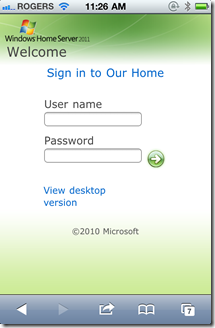
For one, right from the get-go you can customize the RWA about as much as you want:
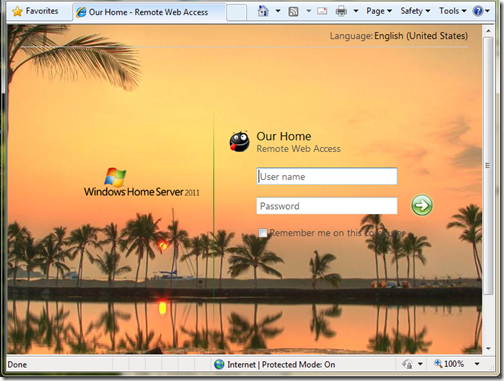
Customized Logon Page

(This picture can be found on my photoblog here)

Remember, you also still get that free 3rd level web domain and matching trusted web certificate (from GoDaddy.com) on the home server.com domain name. Did I mention free security?

You get remote access to computers behind your network, but this time it’s powered by TS Gateway for Server 2008 R2! Yes, that means you can get dual monitor support, and you can take advantage of better optimization for remote access to your PC and better security using that same web certificate for encryption! Thus no longer using security protocols from 8 years ago.

Remote Silverlight Video Streaming

Yes, no more TwonkyMedia chewing up your processor, a built-in, secure, streaming engine based on Silverlight, with (if you put in a fast enough processor) media transcoding:
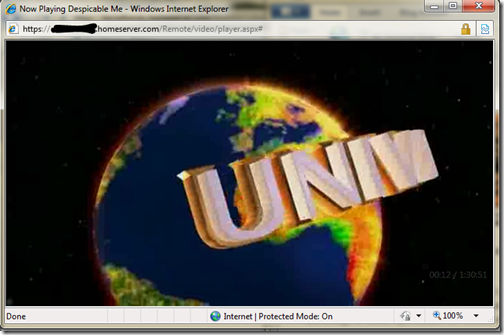
Silverlight Streaming

I also just *love* the photo slide shows. Sending access to the folks and letting them just watch 1000s of photos via a slide show, priceless:
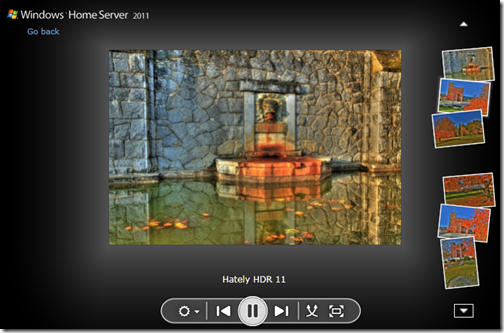
Home Server Picture Slideshow

A Silverlight Music Player that you can make, save and use playlists on. which you can quickly switch music around in. I even use this player in my living room when I have get a get together. People just understand how to use it:
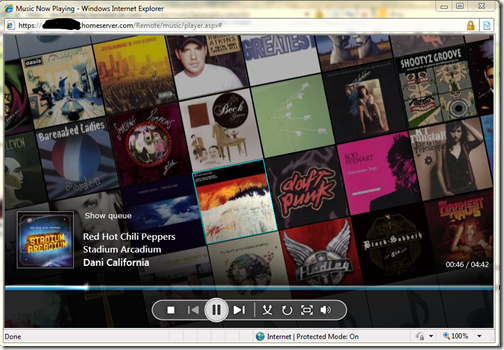
Silverlight Music Player

The ability to download or the ability to move files around without having to download. Yes, that’s right, delete, copy, cut and paste things all over the shared folders without actually having to download it.
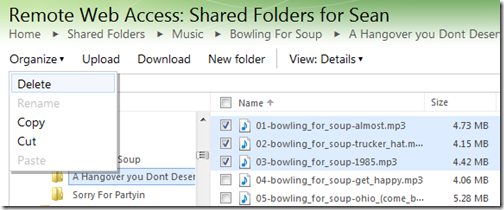
Organize your Folders Remotely

That’s a pretty powerful remote access story, one you won’t find with add-ins that run this flawlessly on the WHS v1 product… oh wait, I’m not finished, check out my iPhone formatted remote access webpage:

iPhone Logon

iPhone Folder and File View

And it looks just as good on an Android and Windows Phone 7!

While we’re talking about media, let’s focus on the internal network. With an implementation of DLNA 1.5 open standard for compatible streaming, you can stream to your XBOX 360, Playstation 3, DLNA capable TV, iPad (with application), Windows 7 PC (or slate!) or any other DLNA compliant device. You can also configure which folders participate in the streaming, simply by adding them to the set of defaults.
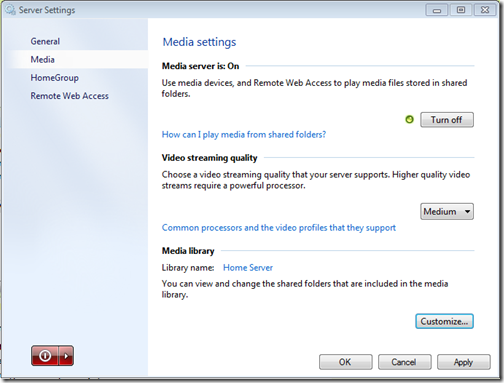
Media Streaming Settings

If we’re going to talk about handy apps, do you remember that awesome Vista Gadget for WHS v1 by homeserverhacks.com? It was called ShareMaster. Well, now included in WHS 2011, is the Launchpad, which enables you to easily backup your PC, access your Remote Web Access site (without having to know the URL, even if it changes!), Shared folders, and if you’re an admin, the Dashboard. It’s also completely extensible by the SDK, so developers can kick it up a notch and add more functionality:
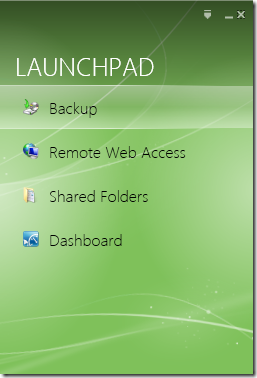
Client side Launchpad

That’s a whole lot of awesome packed into one box! I want to switch gears now and talk about how WHS 2011 protects my data, and why I think it’s safe. To me, the leading cause of data loss is usually hardware failure, most often then not, it’s a harddrive failure. Although there is the rare instance it can be a natural disaster, which happened to my uncle about this time last year.

Last but not least, is something you can’t see, that excites me the most. The Windows Home Server 2011 SDK (still in beta) is HUGE compared to the v1 product. Moreover, it’s SHARED with both Windows Small Business Server 2011 Essentials, and Windows Storage Server 2008 R2 Essentials. What does that mean? it means that things designed for business, can easily be used in the home (and vice versa). That means lots and lots of add-ins! and high quality ones at that. Nothing like developing for 3 platforms, instead of just one.

Data Protection, Why My Data is Safe on WHS 2011!

Data protection is all about having data on multiple drives. Take a look at RAID configurations. RAID5 is one of the most popular RAID configurations in the small and medium businesses, it’s probably sufficient for a home too, but sometimes it can be challenging to set up. RAID5 is a drive configuration that wastes up to 1 of a set of 3 or more drives to maintain “parity” bits. These parity bits are used to rebuild data on a drive if it’s lost. The system can run in limited capacity as soon as this drive dies without the end user knowing it. All in all, it’s a sweet system, but loose that 2nd drive before you can rebuild the array, and your data is toast!

What does Windows Home Server 2011 do? It keeps the data you choose on a second hard drive. Yep, the data on all your client computers is automatically backed up nightly to the Home Server. That’s up to 10 PCs safely backed up, every night. So now the data on your clients, is also on your server, two hard drives. There is a delay of 24 hours, but it’s there. Even if you get a Facebook Virus, you can roll back to the day before. This is exactly the same functionality as WHS v1, except it’s faster, and more robust.

What about the data on the server? Server’s hold data, isn’t that data safe? Yes of course it is. You can backup that data to an internal, or better yet, external hard drive! Unlike WHS v1, this has HUGE improvements. First, the backup is automated. Automated backups take the human error factor out, and the backup uses snapshots, so even open files are captured. I think I remembered to backup my WHS v1 about once/month. Now I’m getting 2x/day! And you know what, I choose the defaults because the server on my data doesn’t change that often. You can bump this up to as often as every 30 minutes. That’s your data, on another hard drive, 30 minute window of possible loss, but if I can’t trust a hard drive for 30 minutes, I’ve got problems with all the data that DOES change on my client computers, because that backs up every 24 hours! [And you can’t tell me that the purchase of an external hard drive isn’t worth your data backup, especially you, Mr. 22TB WHS v1! With or Without Drive Extender]

And…. if you want to do RAID, you can do RAID, you can do RAID1, RAID5, or even RAID10! If you want to do cloud backup (which I do because I’m too lazy to take the backup hard drive out of my house), you can do that, as a few providers are building add-ins.

So what did I really loose with Drive Extender being gone?

  • In the event of a hard drive failure, all my data isn’t still available until I put in a new hard drive and restore that drive back to its original state, if I didn’t configure RAID.
  • I can’t easily extend my storage when I have a disk that’s running out of space.
  • I can’t grow my share sizes past the size of all the hard drives in the system
  • My server storage responds faster because I’m not using DEMigrate.exe all the time

None of the above actually pertains to data loss. It’s all convenience. It was definitely nice to have in WHS v1, but I don’t think it’s absolutely needed in a server in the home.

Massive Data Collections

Let’s talk about Massive Data Collections quickly. Because WHS v1 made it so easy to grow your data collections, far beyond the size of one disk, without having to worry, “have I locked myself in to only X amount of data?”.

Let’s talk about my photo collection. It’s 80GB right now. That’s still not 1TB. I’m an amateur photographer, one that shoots a lot of photos, with a Canon 5D Mark II (a 21mp camera). I still have tones of space on a single 2TB drive to grow. What if I’m a professional photographer? Well, professional photographers don’t use Windows Home Server, at least I haven’t come across one. A good friend of mine has been interviewing professional photographers for some time, and they work with such large photos, they keep them locally, then archive them, usually via USB. Then if they want to work on them, they just plug them into the computer they are on, and it’s a local picture again. \

Video collections. My Canon 5D Mark II takes 1080p video. I use it a lot, that’s probably what jumped my photo collection from 60-80G in a year… but I’m still within reason. My video collection, is a rip of all my DVDs, and some HD-DVDs, and it’s still only 130GB, that’s still less than 1TB, and I still have all the DVDs in the closet, my music collection is 40GB… still have all the CDs. But I agree these data collections can get quite huge. This is probably the one place folks will actually miss Drive Extender. I couldn’t agree more.

… But maybe it’s time to take a hard look at what data you’re hording on your server. Do you really need to be a digital hoarder and save everything? I mean even Mozy can’t deal with you, as they announced they are killing their unlimited data plan. People save a lot, and it costs money, but do you really need it all? The guys at TechCrunch say “I assure you that you will never print those 10,000 pictures you have stored in iPhoto. Never. Ever.”.

If you absolutely *must* keep all that data, you should have a plan for it anyways. It’s not like if you store magazines for comic books, you don’t put aside space in a closet for them. With a plan, you can easily map out your storage needs, and growth. In fact, a few people even have growth charts of their storage growth from WHS v1, so you *know* the storage you’re going to need! I also suggest turning on File System Resource Manager and cataloging exactly which data is being used. I bet after a year, you use less than 30% of it.

So bottom line, I stay trim with my data (rule #1 of becoming a better photographer is forcing yourself to throw away 70% of your photos), I feel like Windows Home Server 2011 is the right product for me, for simplified access to my data. Simplified Management of my network, and extremely safe data protection plans. Moreover, because it’s Windows, it just works with other things in my house.

I liked Drive Extender too, but the product isn’t dead, in fact, it’s still awesome!
Thursday, January 14, 2010

Understanding SSL Certificates

I get a lot of questions on understanding certificates in general, this post is intended to answer those general questions and is not specific to any product.  Although I plan on using Windows Home Server and Windows Small Business Server 2008  as examples here.  I do have a previous post on understanding the self-issued certificate in SBS 2003 and SBS 2008, as this post will focus on understanding trusted certificates, and what makes them trusted.

Certificates provide two purposes:

  1. Authenticating the server to the client
  2. Providing encryption between the server and the client

I will cover the authenticating the server to the client in this part 1 post, and will write a part 2 post that handles the second part of encryption.

Part 1 – Authenticating the Server to the Client

Think of a certificate like a drivers license; a United States drivers license as that’s what I’m most familiar with.  The drivers license has three key components that makes it what it is. 

  1. A name that identifies what you are called, in my case, “Sean Daniel”
  2. An expiry date, that identifies when the license is valid from.  This ensures data doesn’t get stale, like your picture, or hair colour, or if you need glasses or not to drive
  3. An issuing authority, such as Washington State

This is the same as a computer SSL certificate.  It has a valid URL, an expiry date, and an issuing authority.  When the client gets to the intended URL such as https://remote.contoso.com, it asks the server for proof that it is remote.contoso.com, and the server presents it’s certificate.  The client validates the 3 checks.  Does the URL in the certificate match (ie. are you “Sean Daniel”).  Is this certificate valid (is the expiry date past today’s current date and time).  Those are the two easy to understand checks.  The final check is “do I trust the issuing authority”.  In the case of a drivers license, you’d bend it, look at it under a black light to make sure it’s authentic, and then you’d see Washington state issued it and be.  Sure, I trust the state government.

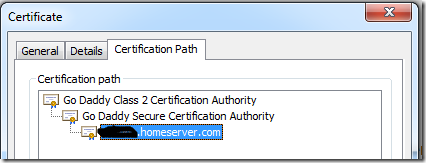
With certificates, it’s slightly different. The computer follows the certificate chain outlined in the certificate path (IE view):

Certificate Chain

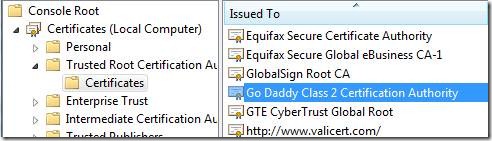
In the above example for Home Server, the client will check if it trusts foo.homeserver.com.  It looks into it’s trusted certificate store for a matching certificate, none would exist of course, so it would then look for the “GoDaddy Secure Certification Authority” in the same store.  Because the “GoDaddy Secure Certification Authority” trusts foo.homeserver.com, the client can base it’s trust on that.  Again, it won’t find that certificate, so it bounces up to the root certificate and looks for “Go Daddy Class 2 Certification Authority” in the trusted root store:

Trusted Root Certification Authority Store

As you can see from a view on my Windows 7 box, Windows 7 by default trusts this certificate, so since I trust that certificate, and that certificate trusts the “Go Daddy Secure Certification Authority”, then my Windows 7 machine also trusts this authority, and since the “Go Daddy Secure Certification Authority” trusts foo.homeserver.com, then My Windows 7 client also trusts foo.homeserver.com, and a trusted certificate connection is established.

In the non-computer world, think of it this way.  When I try to get on a plane, and I present my drivers license (domestic flights only!), they trust WA state and allow me on the plane.  If I were to present my Microsoft Identification, they would probably look at me sideways and ask for another ID, because the airlines don’t trust the Microsoft employee issuing authority.  However, if I go to my companies Christmas party I can present EITHER my drivers license, or my Microsoft ID, and they trust both, since they trust WA state, and the Microsoft employee issuing authority.

In Windows SBS 2003/2008 and the use of self issued certificates.  You install the leaf cert (sbs 2003) or the root cert (sbs 2008) into your client trusted root store, and now your client will trust that issuing authority as mentioned above.  This is outlined in my old post.

On Mobile devices, such as Windows Mobile, you need to ensure the certificate is in that root store as well, which is why some certs work and some don’t on older Windows Mobile devices.  Additionally it’s important to call out that browsers on clients behave differently too.  For example, Firefox has it’s own certificate store and doesn’t use the one in Windows.  The certificates in Windows and also on later mobile devices are updated and maintained through the secure connection of Windows Update.

Hopefully this clears up the server to client authentication.  Of course we know the client authenticates to the server by providing your username and password to prove you are indeed the user the server should give access to. 

Last important thing to remember, is NEVER install a certificate over an unsecure or un-trusted  internet connection, you should always use a SECURE method of installing certificates.  That means you download a cert over an already trusted and secure connection, or you bring it home in your pocket on a USB key.  You never know if there is going to be a malicious server giving you a bad certificate for the wrong server on the Internet.  Then you will just be giving your username and password to the wrong server on the Internet, and that would be disaster.


Update: Continue on to Part 2, now posted.

Friday, August 07, 2009

Digital Lifestyle: Syncing Your Digital Life

digital life

I’m starting something new: The Digital Lifestyle corner.

On Friday’s (when I have time), I wanted to write a blurb on some different types of technologies, how I use them and how they have made my life easier.  Plenty of times my wife complains that “computers slow her down”, but that’s not what computers, software and the Internet do for me, and I wanted to share my usage with different technologies in hopes that you can leverage computers to save you time as well, for the fun stuff!

Today’s topic: I want to discuss some software that has changed the way I use multiple computers.  “Sync”

I’m probably not a typical computer user in the fact that I use 4 computers almost daily, but I’m sure a lot of people use at least two.  I was talking to a friend the other day who has a desktop but wants to use a Netbook for taking notes at school, but then be able to work on homework using the bigger monitor and more powerful desktop.  Using Sync technology she need only have a hotspot at school to get those files home.  Ease of access *and* a backup! How convenient eh?

I primarily use two Sync technologies today.  Windows Live Mesh, and Windows Live Folder Sync.  Both have their pros and cons as I’m sure any other sync technology would.  Again, I am only covering what I have familiarity with, comments are open for other apps that you love.

Live Mesh

First, Windows Live Mesh provides a number of different services.  Synchronizing files is it’s primary function, but it also provides remote desktop functionality and sharing with friends, family or co-workers as secondary functions.  I primarily use it to Sync my own files and folders.  Mesh can sync files between many different PCs, you can choose any personal folder on your system to sync with any folder on different PCs, and you can choose it to sync with your “Mesh Desktop”.  This is the best part!  The Mesh desktop is a 5GB store that you can throw data up to, so you can use the “Mesh Desktop” as your always-on PC.  Plus I bet it has better bandwidth than any of your home or mobile PCs, so once the data is synced with the “Mesh Desktop”, it screams down the pipe to your other PCs.  The limit here is of course the 5GB limit of space.  Once it’s gone, it’s gone, and you’re doing PC-2-PC sync, which is slower, and requires your PC to be on.

Currently with Mesh, I sync

  • My Favorites.  Having my favorites the same on all my PCs is awesome, I can add a favorite on the couch watching TV at night, and it’s ready for me on my PC at the office the next day.
  • A Wallpaper directory. Windows 7 will rotate desktops as part of the OS, so I sync my wallpaper (280 pictures) from PC to PC and have Windows 7 rotate these.  Once I drop a photo in on my home PC, I see it on my work PC a few days later, without making a change
  • A Tools directory.  I have a directory that has a bunch of .reg files and .cmd files as well as some apps that I want to install on all of my PCs.  After installing Mesh, I’m set with everything else that needs to be installed all being local
  • The Live Writer Posts Directory.  I blog from 3 of my 4 different PCs, so having all the offline posts sync is great.  Start it on one PC, finish it on another
  • Collaboration folders.  I share some work with some peers around the Internet, and instead of emailing the file, we just drop or edit it out of the directory and the updates are handled and distributed to the peers.
  • Mobile Pictures. I run the Mesh beta client on my Windows Mobile device, such that when I take a photo, that photo syncs to the cloud and my home PC almost immediately!

In addition to the sync, you can access your files from anywhere in the world simply by going to the Mesh Homepage.  If you’re not at your PC, but just need that tool, or that favorite, or access to that file you know is up there, just log in and download it directly to the PC you’re at!  And finally, Mesh let’s me Remote Desktop to any PC turned on to boot! (Although I wouldn’t say it’s as fast as remoting to your PC directly, or using a product like Windows Home Server or Small Business Server directly, but it works in a pinch!)

Ok, so here is my problem with Mesh, it uses between 45-100mb of RAM depending on what it does.  Between the “MOE.EXE” (Mesh Operating Environment) and the “MOEMONITOR.EXE”.  This is problematic for those Netbooks that are limited to 1GB of RAM.  Especially when you jump from your 250MB Windows XP footprint to your 550MB Windows 7 footprint.  After your applications, you’re a bit limited.  For that I jump over to Windows Live Sync.

Live Sync

Windows Live Sync was born from an older technology called FolderShare.  Live Sync is will synchronize files between PCs without the cloud back-end, so you are limited to at least one of your PCs being on for the sync to occur.  But you still get to sync between PCs and you can also sync with other peers or co-workers that are using Windows Live Sync.

The good news for Netbooks about Live Sync is the foot print (as I’ve monitored it over time) is less than 2 MB!, perfect for a Netbook running Windows 7!  I use it to sync my documents that I create on my Netbook and my favorites.  Thus meaning that if I add a favorite on my Netbook, Live Sync will update it on my home desktop, which will then use Mesh to toss it around all the other client computers.

Wednesday, March 25, 2009

Exchange Server Remote Connectivity Analyzer

The Official Exchange Team Blog just announced the release of their Exchange Server Remote Connectivity Analyzer. The connectivity check will allow you to choose what type of Exchange protocol you want to talk to your Windows Small Business Server on and prompt you for a particular user and it will tell you what the problem is for connecting to that server.

Overview

The Exchange Server Remote Connectivity Analyzer is a web site for IT Administrators to validate and diagnose end-to-end Exchange scenarios.  The site simulates multiple Exchange client access and inbound SMTP scenarios from outside the customer’s infrastructure and reports whether the test was successful.  If the test fails, we tell the IT Admin exactly where in the process it failed as well as provide troubleshooting tips on resolving the issue.  See the screenshot below.

ExchRCA02.jpg

In this version, the tool provides the following end-to-end tests:

  • Exchange ActiveSync (v2.5 and greater… including AutoDiscover)
  • Outlook Anywhere (OL2003 and greater… including AutoDiscover)
  • Inbound SMTP

Note: The Outlook Anywhere test will fail when the server is running MOMT (e.g. an Outlook.com mailbox) since the tool doesn’t currently test encrypted RPC… but check out the detailed and clear error message!

Coming Soon

We will be expanding the Exchange scenarios in the next few months to include the following:

  • Outlook Web Access
  • IMAP
  • POP
  • Exchange Web Services

Quick demo


Get Microsoft Silverlight

Check out the short video describing the tool on TechNet Edge.  Or try the high quality version.

Friday, March 20, 2009

Windows Mobile 6.5 Announced at MIX ‘09!

Windows Mobile 6.5 home

Looks like the new Windows Mobile 6.5 experience was announced at Mix ‘09 in Las Vegas just recently.  Updates include:

  • A new “Lock” screen to show alerts and notifications
  • Flick Scrolling
  • Details on a Windows Mobile Marketplace
  • An improved Internet Explorer Mobile

Hopefully they can updated my Samsung Jack II.  Time will tell!

Friday, February 20, 2009

The Importance of a Strong Password

I can’t emphasis enough how important creating a strong password is. Lots of people have easy to remember passwords that are just not secure.  The most notable ones are bank PIN numbers.  The difference here is you have to physically have the card to use the password, in an environment where you only have a username and password, the password is super important.  It’s quite likely that your username is right there in your email address, so the password is all that keeps those hackers out.

If you like the idea of having something “physical” that you are required to have with you, you can add these technologies to Windows Small Business Server.  Using 3rd party software, you can either take advantage of SmartCard authentication built right into Windows, or use something designed specifically for SBS, called Auth Anvil, which requires you to have a FOB with a random number on it when logging into Remote Web Workplace.

If a low cost solution is required, you can jack up the password policy requirements on your network and require users to have super strong passwords.  Below is the password policy out of the box with Windows Small Business Server 2008. 

image

You can change the frequency of when the password needs to change, which prevents brute force attacks (as those usually take time), and change the number of characters.  When you enable password complexity requirements, you’re forcing the following:

  1. Not containing the user’s account name or parts of the user’s full name that exceeds 2 consecutive characters
  2. Contains letters from the following:
    1. English Uppercase A-Z
    2. English Lowercase a-z
    3. Base 10 digits 0-9
    4. Non-alphabetic characters (e.g. !, $, #, %)

The trick of course is to educate your end users to remember these passwords.

Microsoft has a great article on Strong Passwords: How to Create and Use them.  Creating (and remembering) a strong password is far easier than you think.  Microsoft calls out these 5 easy steps:

  1. Think of a sentence that you can remember. This will be the basis of your strong password or pass phrase. Use a memorable sentence, such as "My son Aiden is three years old."
  2. Check if the computer or online system supports the pass phrase directly. If you can use a pass phrase (with spaces between characters) on your computer or online system, do so.
  3. If the computer or online system does not support pass phrases, convert it to a password. Take the first letter of each word of the sentence that you've created to create a new, nonsensical word. Using the example above, you'd get: "msaityo".
  4. Add complexity by mixing uppercase and lowercase letters and numbers. It is valuable to use some letter swapping or misspellings as well. For instance, in the pass phrase above, consider misspelling Aiden's name, or substituting the word "three" for the number 3. There are many possible substitutions, and the longer the sentence, the more complex your password can be. Your pass phrase might become "My SoN Ayd3N is 3 yeeRs old." If the computer or online system will not support a pass phrase, use the same technique on the shorter password. This might yield a password like "MsAy3yo".
  5. Finally, substitute some special characters. You can use symbols that look like letters, combine words (remove spaces) and other ways to make the password more complex. Using these tricks, we create a pass phrase of "MySoN 8N i$ 3 yeeR$ old" or a password (using the first letter of each word) "M$8ni3y0".

If you want Microsoft to check how secure your password is, you can use the handy password checker.  I would recommend going for at least a password that indicates a Strong or Best green rating.  Weak passwords are usually compromised easily either by brute force attacks, or simply by knowing a bit about you.

Tuesday, January 06, 2009

Going Green and Paperless in Small Businesses

In today’s global economy, tied together with the pressure to stay green, what are the options for a paperless, more efficient, green office?  Is using technology greener that not using technology?  Sure each server or client PC you run increases your carbon footprint, at least according to an article on MSN called Green My Blog.  But also mentioned here is that using hosted services means you share that carbon footprint with the 1,000’s or 10,000’s of others using those servers.

For the past 4 years now, I have been on a mission to reduce the amount of paper that I use, and conserve as much as I can.  I am doing this at home, and at the office. Going green at the office is not only good for the environment, but it will save the business a lot of money!  This doesn’t just stop with paper, it rolls into saving money on power, and making employees more effective, saving you on payroll!  In fact, the CBS Early Show talks about saving money with green technology by cutting down on your power consumption, paper consumption and making employees more effective:

 
Windows Small Business Server can help you go green at the office by consolidating services.  And with a Dell PowerEdge Server, with the AMD Opteron Processor; you get a very eco-friendly server (using 25% less energy) to do so.  Windows Small Business Server can lessen power and paper usage with fax, by having the server answer the fax and email the fax to a fax secretary, lessening the need to keep a fax machine on as well as a server, and reducing paper usage in the office.  A standard fax machine is on 24x7, and uses paper for every outbound or inbound fax.  Or document printing to share with co-workers is a huge waste of paper (According to their study, an office worker on average uses 10,000 sheets of paper in a year! That’s 2 lbs of paper a day!).
 
Further, with Small Business Server, you can easily share files and store them securely, reducing the amount of file cabinets and folders needed around the office, saving space, and time for employees to find the data that they need.  Small Business Server provides SharePoint technology and file shares for the store method you need.  Additionally, easy to use backup and recovery technology keeps the data safe.
 
When on the road, there is no need to print out or bring pieces of paper, or a calendar with you, Windows Mobile seamlessly keeps updating with the server to bring you the latest email, calendar items and contacts.
image
So an investment in green technologies can and will save energy, money and make employees at a business more effective.
 
Why wait on going green at the office?  Think about saving money by investing in the right set of technology for your business.
 
What about at home?  Turn off, or sleep that PC when it’s not in use and store your files on the tiny, power friendly,  MediaSmart server from HP, running Windows Home Server.

Wednesday, October 29, 2008

More on Autodiscover, for Windows Mobile and Gotchas with Certificates

A previous post introduced and explained how Autodiscover works in SBS 2008.  Today I want to dive a little deeper into the gotchas to be weary of when using self-issued certificates, and talk about what you need to do with Windows Mobile to make this work as well

Self-Issued Certificates

First of all, make sure you understand the self-issued certificate, and how that differs from a Trusted certificate for web traffic.  If you can swing it, with today’s SSL prices for a simple SSL cert, it’s far worth the money to get a trusted certificate than fight with your free self-issued certificate.

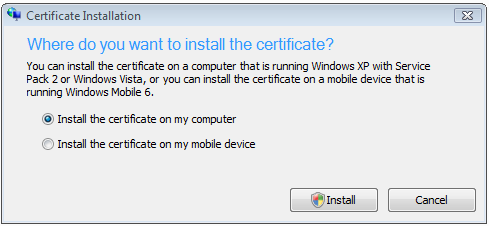
If you must use the Self-Issued certificate, any domain joined client computers or laptops will automatically get the self-issued certificate through Group Policy.  Any remote or non-domain joined computers will not get the certificate automatically, and you will need to manually install the root certificate on these computers. SBS 2008 provides a great tool to do this automatically (This tool is not designed for the iPhone).

To make sure Outlook Anywhere, or Autodiscover function correctly, you must install the self-issued root certificate on the client, or install a trusted certificate on the server in order for you to successfully configure Outlook Anywhere using the Autodiscover feature.

Windows Mobile

Windows mobile falls into much the same pitfalls as Outlook with a self-issued certificate.  Remember, the certificate is used to verify the identity of the server to the client computer or mobile device, much like your driver’s license validates you are who you say you are when getting on a plane.  If your server is configured to use a self-issued certificate, the device will refuse to talk to the server, because the SSL chain is not trusted.

To recap here:

  1. Purchase and Install a Trusted Certificate on the server before setting up Outlook Anywhere, or any Windows Mobile/iPhone type devices, OR
  2. Install the self-issued root certificate on remote clients, or Windows Mobile devices before you continue with connecting the PC or Device to the server

Thursday, October 09, 2008

Changing the Scroll Wheel speed on the Samsung Jack (BlackJack II)

Just picked me up a Samsung Jack, I love it.  It’s responsive, it’s got the full tactile keyboard (touch screen wasn’t doing it for me), and it’s been flashed to Windows Mobile 6.1 from the Samsung Support Website (Simply search for “Windows Mobile 6.1” and you should find it).

The only drawback of the phone was how slow the “wheel” scrolls.  This is configurable in the Registry.  Simply browse to HKLM / Software / Samsung / KeyRun.  Push the Values button, and look for WheelSpeed.  Change the value to 0, and close the registry editor, no reboot required.

[Information Provided by MobileJaw.com]

Monday, August 11, 2008

Monday, July 14, 2008

Allowing OWA and Mobile Devices to download files from SharePoint and the File-System without a VPN connection

The Power of Exchange 2007 is amazing.  Did you know that with Exchange 2007, that's included with Windows Small Business Server 2008 you can have your Outlook Web Access and Mobile Device users click a link to download files directly from the Internal Company Web Site (http://companyweb) or file shares?

Well, you can and it's easy to use, and easy to configure.

To Enable Remote File Access for Outlook Web Access Users:

  1. Click Start, All Programs, Microsoft Exchange Server 2007, and then select Exchange Management Console.
  2. Once the console opens up, expand Server Configuration and then click on Client Access.
  3. Right-click on the owa (SBS Web Application), and choose Propertiesimage
  4. Once the property page loads, click on the Remote File Servers tab, and click the Allow button.                                                              image
  5. In the pop-up that opens, type in "companyweb" without the quotes image
  6. Click Ok and then Ok again to get back to the console.

Now when users send email with http://companyweb/shared%20documents/myfile.txt as a link in email, Outlook Web Access users will be able to click the link and download the file directly through OWA. 

This technique can be done with file-servers as well, simply by putting the SBS server name into the Allow list.  The user would just put in \\server\share\filename.ext into the email and the user would be able to download it via OWA.

Finally, you can also do this for mobile devices, by switching tabs to the Exchange ActiveSync tab and repeating the same steps.

Tuesday, May 13, 2008

Windows Live for Windows Mobile available

Do you have a Windows Mobile device? Interested in getting IM, Search and your Hotmail down to your phone? well, now you can, with the new Windows Live Mobile!

Point your Windows Mobile devices here: http://wl.windowsmobile.com 

There is something to be weary of though:

Q: Why am I seeing duplicate contacts when I choose to save Windows Live contacts on my device?

A: Upon first time sign in to Windows Live, if you choose to save Windows Live contacts to your device’s contacts store, they will then be accessible via the Windows Mobile Contacts application and will appear alongside the contacts you have created on your device (either manually, via Microsoft Outlook, or via Exchange ActiveSync). If you did not check "Merge duplicate contacts", Windows Live contacts that have the same First Name and Last Name as contacts already on your device will appear as duplicates. If you checked "Merge duplicate contacts", a merge will take place but there will still be likelihood that some of your Windows Live contacts may not be merged correctly.

https://www.microsoft.com/windowsmobile/mobile/wl/faq-en-us.mspx


Note: Standard is the Smartphone, non-touch screen version, and Professional is the Pocket PC touch-screen version.

Wednesday, February 20, 2008

Deploying Windows Mobile 6 with SBS 2003

For those of you who are upgrading your devices, or starting new with Windows Mobile 6. The Windows Mobile and SBS documentation teams worked together to bring you the Deploying Windows Mobile 6 with SBS guide!

In addition, If you have other versions of Windows Mobile, the appropriate guide for you might just be waiting for you here.

And as always, all the online documentation is available in the SBS Technet Library.

Saturday, September 23, 2006

Mobilizing the Microsoft Stack - Mobility Road Tour

Hey Folks,

Starting on 10/2, the Microsoft TS2 group will be showing off some of the latest gadgets, plus have reps from Verizon, Brightpoint, and Palm at many of the sessions. For the first 40 Microsoft Partners, there will be FREE Windows Mobile devices (The catch is that they have to deploy a Windows Mobile solution within 60 days of the event; details are on the invitation link). Apparently, registration is limited, so sign up today!

10/02/06 - Monday, Washington, DC
10/02/06 - Monday, San Francisco, CA
10/03/06 - Tuesday, Downers Grove, IL
10/03/06 - Tuesday, Malvern, PA
10/04/06 - Wednesday, Southfield, MI
10/04/06 - Wednesday, Dallas, TX
10/04/06 - Wednesday, Phoenix, AZ
10/05/06 - Thursday, Tampa, FL
10/16/06 - Monday, Irvine, CA
10/19/06 - Thursday, Waltham, MA
10/25/06 - Wednesday, Raleigh, NC
10/26/06 - Thursday, Iselin, NJ
11/03/06 - Friday, Denver, CO

Just click a link to sign up!

Monday, January 16, 2006

Windows Mobile 5.0 and Self-Signed Certificates


Happy New Year. I know, I know, the posting isn't as often these days, but when you're heads down on things that you can't speak about, it's a little hard to have other time to investigate cool stuff. And yes, for those of you interested, I'm still working on the steps for hosting multiple websites via ISA, I think that's my only outstanding request.

Anyways, now that Windows Mobile 5.0 is available, I'm allowed to discuss this particular topic. It's becoming known that the self-signed certificate that is created as part of running the CEICW (Configure E-Mail and Internet Connection Wizard) doesn't install on devices running the latest version of Windows Mobile. Well, the good news is, that's because we've made the device much more secure. As a result, your device is much more robust to threats from the outside world. However, it does unfortunately cause a slight headache for our SBS customers.

If you have an i-mate (typically the Audiovox SMT5600) you might not be completely out of luck, as over at Club I-Mate once you register your device (which yes, requires making an account) there is a device that can install such certificates on your device. Depending on how locked down your provider makes your phone this could be an option.

The quickest, most efficient way to get Over the Air Synch against the Exchange server to happen is to install a trusted certificate. But be careful! Not all certificates are created equal. Windows, and by the transitive property, Internet Explorer, trust far more root certificates than Windows Mobile based devices. When you're purchasing your certificate, if you plan to use a Windows Mobile based device against your SBS server, make sure the certificate chains up to one of the core root certificates: VeriSign, Cybertrust, Thawte, Entrust, GlobalSign and Equifax. Without this, to the mobile device, it just looks like a self-signed certificate...

Good luck!

Thursday, October 20, 2005

Exchange Server 2003 Service Pack 2


So Exchange Service Pack 2 released yesterday! You should start planning accordingly to get this service pack on your Small Business Server 2003 box! As Susan says, you might not want to Install it over a lunch hour, but definately plan for it.

Download details: Exchange Server 2003 Service Pack 2

Just so you're aware, we've been running Exchange Service Pack 2 on the SBS Catfood server for about a week and a half now, and there have been no issues. Of course the OWA logon page now reads DOMAIN\USER, but you can still log on with just username.

One of the big things to note is the new mobility features with Windows Mobile 5.0!
  • Syncing of Contact pictures

  • Security control over devices in the field

  • Remote wipe of device

  • Always up to date without SMS

  • and more ...

Exchange Service Pack 2 is pretty exciting for mobile users....

Tuesday, September 27, 2005

SmartPhone Themes

As you know, I got the Audiovox SMT 5600 some while ago, and I felt special. That was until 18,000 of my closes Microsoft peers also go the same phone, then I felt more like a lemming.

But, after putting on my thinking cap, and applying my same knowledge of customization to my smartphone that I do with my desktop, I got to thinking: I could make this phone truely mine.

I started with ring tones & sounds. I have the Pirates of the Caribbean theme song as my ring tone. It works out quite nicely. I also have some pretty wacky sounds as reminders and new item notification.

I still felt like a lemming, my phone looks like everyone else's... So naturally, I started putting my own photos on the home screen, then I thought about the colours, and I found this wonderful page on SmartPhone Themes! (make sure you drop the "goto category" drop down, there are hundreds of themes here!).

Then I figured, why stop there (by this time, you know how much of a time synch this has been, my poor puppy, he wants to play, and I'm knee deep in xml writing a new SBS 2003 unofficial smartphone theme!

That's right, you heard me, In my spare time, I'm writing a new theme, I'm optomizing it around visibility, simplicity and clarity. Which of course just sums up in "damn cool!" Once I get it complete, I'll post it here. I'd say I'm about a 1/4 of the way through.

Don't be lame, customize!

Thursday, May 26, 2005

Changing the Windows Mobile 2003 MRU Applications

So naturally, after my first success changing the wireless network friendly name: I'm a registry junkie. I found yet *another* registry change I can do. When the phone boots up it shows some MRU Applications (that's Microsoft speek for "Most Recently Used") applications. It gives me E-Mail, Calendar, Contacts and IE.

What for?

If I had a new message, I just click on that section of the home screen, if I wanted to see my calendar, I just click on that section of the home screen and if I wanted to get to a contact, I'd just start typing it in. IE's useful though.

I managed to point my PHM registry editor at HKCU\Software\Microsoft\Shell\StartMRU, switch to the Values and edit the "Initial Order" registry key.

This one is a little trickier, the all the .lnk files start at the start menu in the file system, so if you want to launch something in a sub folder you have to put Games\Solitaire.lnk.

Now I have my weather, My traffic, ActiveSync and Worms World Party on my MRU.
Schweet! This just made the home screen more useful directly after bootup!

Wednesday, May 25, 2005

Registry Fun with Windows Mobile 2003

So I recently got an Audiovox SMT5600, except that mine was shipped in from over sea's. I hooked it up with Cingular service here in Washington state, it works great. However, the phone that I had wasn't programmed to understand the Cingular network, it said "31041" instead of "Cingular" as the service on the screen.

Lucky for me I got to be friends with the guys in the Cingular store who told me it's just a simple registry edit that I could do if I have the time...

If I have the time?

I am a geek and nothing would make me happier than dig around in the SmartPhone registry. So naturally I found the PHM Registry Editor. It's free, it install's easy, and it's also easy to use.

One warning here is editing the registry can seriously mess up your phone, so be EXTRA careful!!

Once installed, I opened it and browsed to HKLM\Software\Microsoft\RIL\OperatorNames, then clicked the Values button. I created a key called "31041" (the string for the home network). Inside the key I simply typed, using T9, "Cingular Wireless". Then rebooted the phone. Whamo! Now my home screen says "Cingular Wireless" instead of "31041"!

Pretty sweet Eh?

Wednesday, April 06, 2005

Configuring you're 2002 Windows Mobile Device with SBS


Windows Mobile 2002 doesn't exactly work out of the box with SBS 2003 the self-signed certificate CEICW creates.

You have a number of options to get these devices to work with SBS 2003. The best option of course is to get a trusted certificate from an appropriate certificate provider. A quick search on Google for cheap certificates reveals DigiCert, a place to get a $99 certificate.

Of course if that is too much for you, there is always the option of working with the specific device. Microsoft provides some tools to help you get these devices to work with self-signed certificates.

You can add the certificate to a Pocket PC 2002 device with Add Root Certificates

Microsoft provides another tool for Pocket PC 2002, and SmartPhone 2002 to disable the certificate check. This tool disables the validity check on the certificate for ActiveSync only. The certificate check will still be enabled on Pocket IE.

The certificate check includes:

  • A check to ensure the certificate has not expired

  • A check to ensure the certificate name matches the site you are visiting

  • A check to ensure the certificate is trusted with a root cert in the local store


My favourite saying has always been, go mobile, or go home!